
Let's clean up the platform, configure critical settings, learn what's what, create your Oracle workspace, and set up your first charts. This is where it starts to feel real.
The Control Center is NinjaTrader's home base. Everything flows from here — connections, charts, orders, logs, strategy management. It's always running while NT is open.

Key areas of the Control Center:

NinjaTrader may have opened some default windows — charts, the news feed, or other panels. Close all of them. We want a clean slate.
The only window that should remain open is the Control Center. If you close it, NinjaTrader closes entirely — so leave it open.
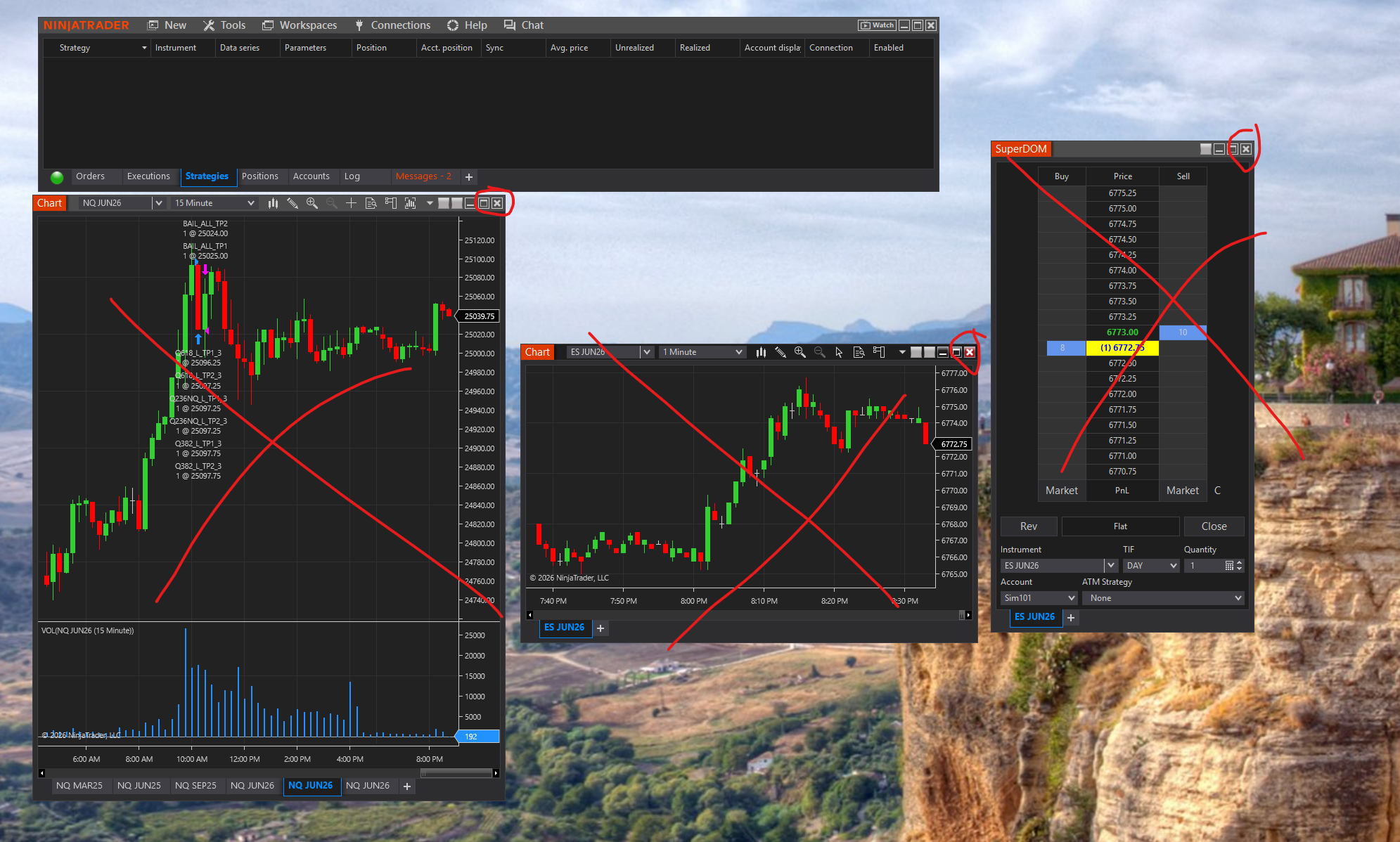
Default workspaces can have settings that interfere with your algo setup. Starting fresh ensures everything is configured exactly right.
Before we build anything, two settings must be configured. These affect how your algorithms connect and how trade times are calculated.
In the Control Center menu bar:
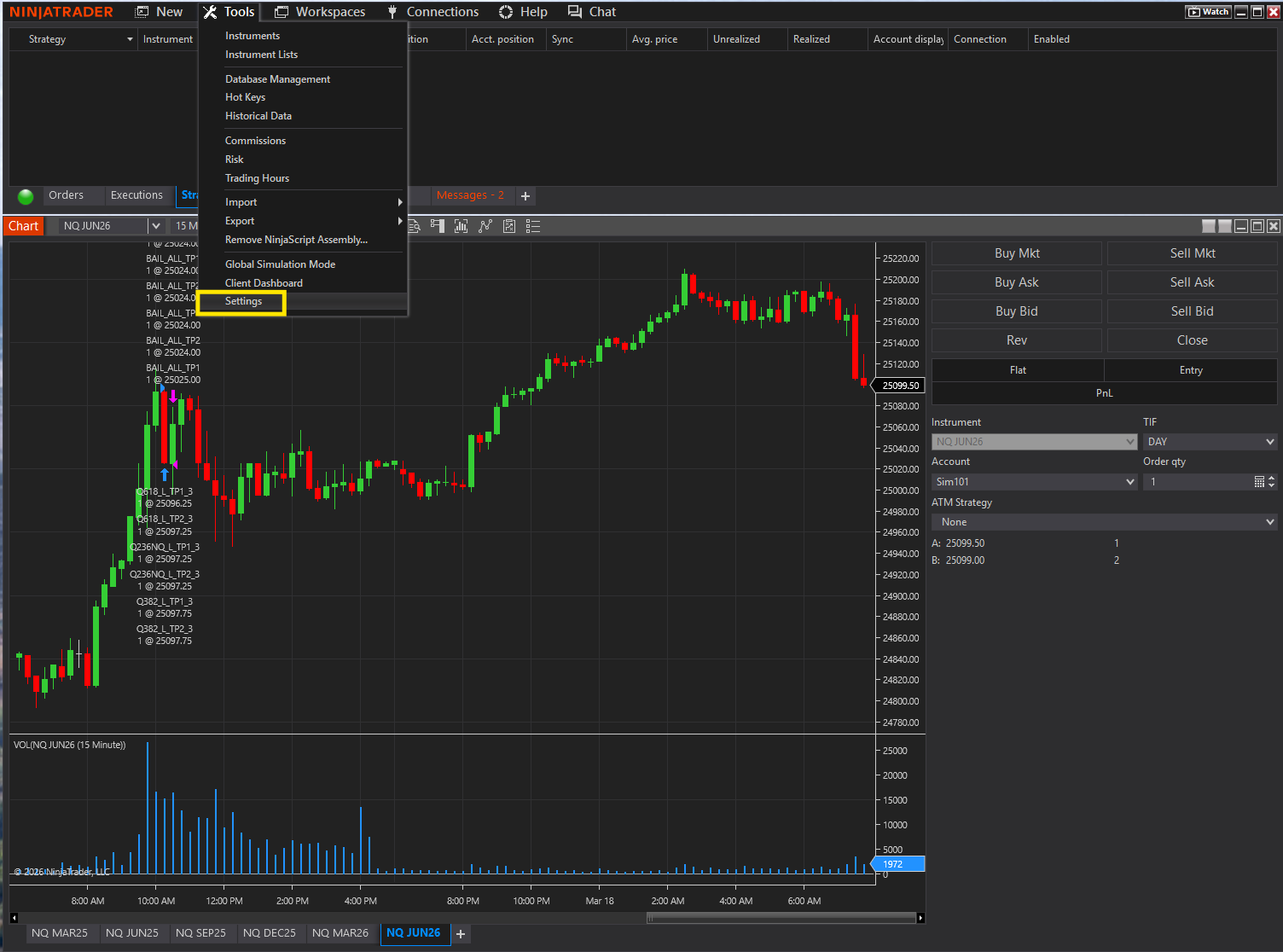
In the Settings window, make sure General is selected in the left panel. Then change these two settings:
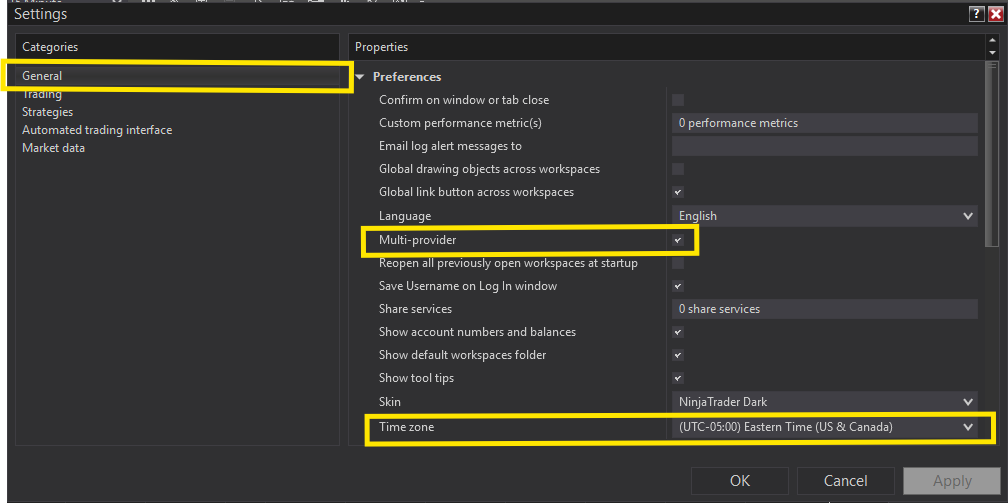
Click OK to save your settings.
If Multi-provider is not enabled, you won't be able to connect multiple accounts. If the time zone is wrong, your algorithms will trade outside their intended sessions. Both settings are critical.
Workspaces save your entire layout — charts, windows, positions, everything. We're going to create a dedicated workspace for your Oracle setup.
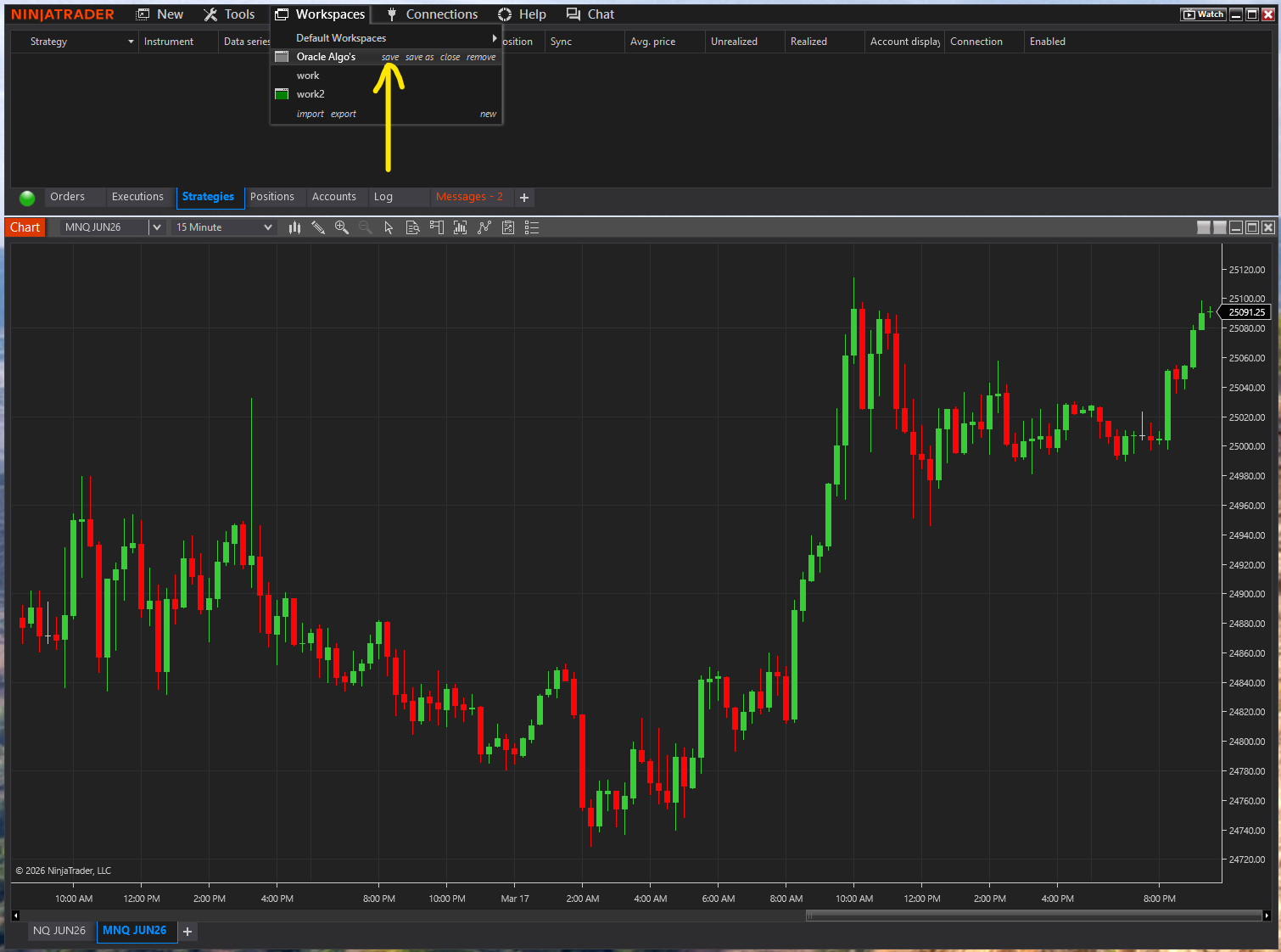
In the Control Center menu bar:

A dialog will ask you to name the workspace. Type Oracle Algo's (or any name you like) and click OK.

You now have a clean workspace. Everything we build from here saves to this workspace automatically.
Time to see some price data. We'll create a chart for the E-mini NASDAQ (NQ) — this is the primary instrument your algorithms trade.
In the Control Center:
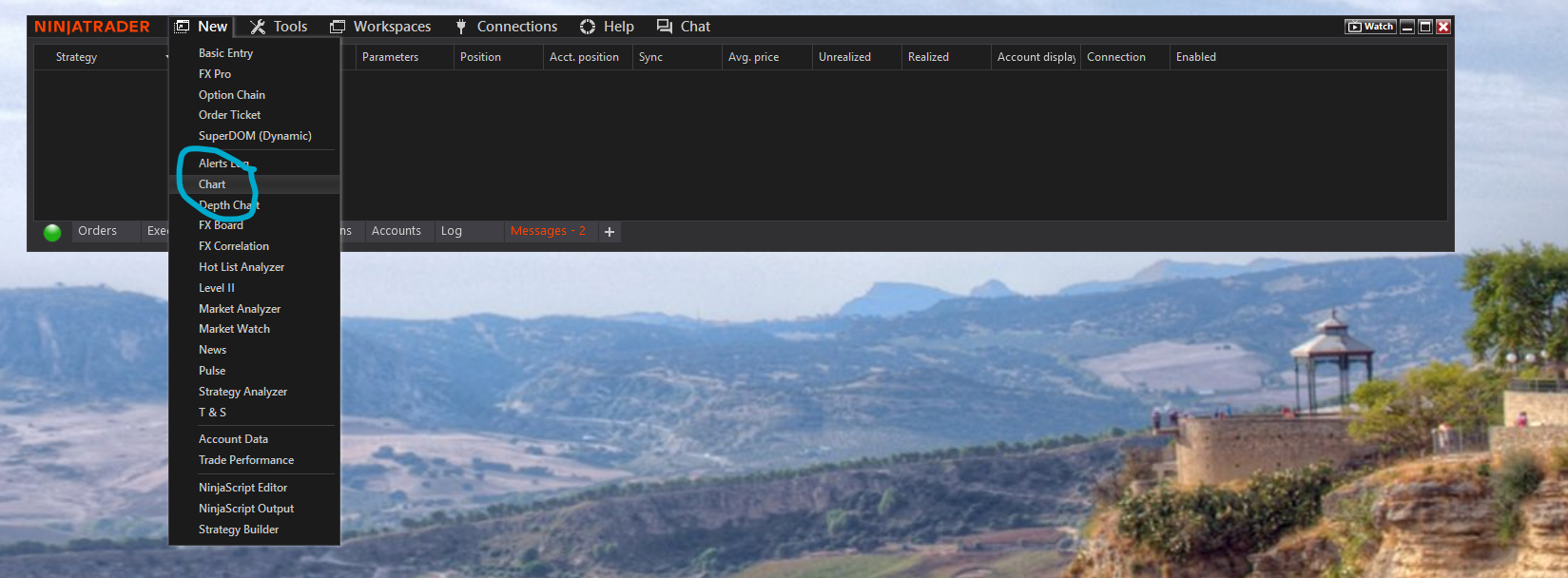
The Data Series dialog will appear. Set these values:
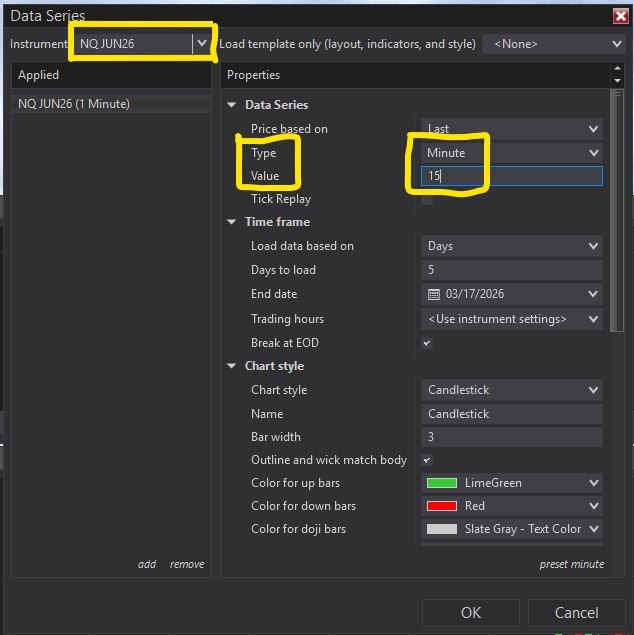
Click OK. Your first NQ chart will appear with live price data!
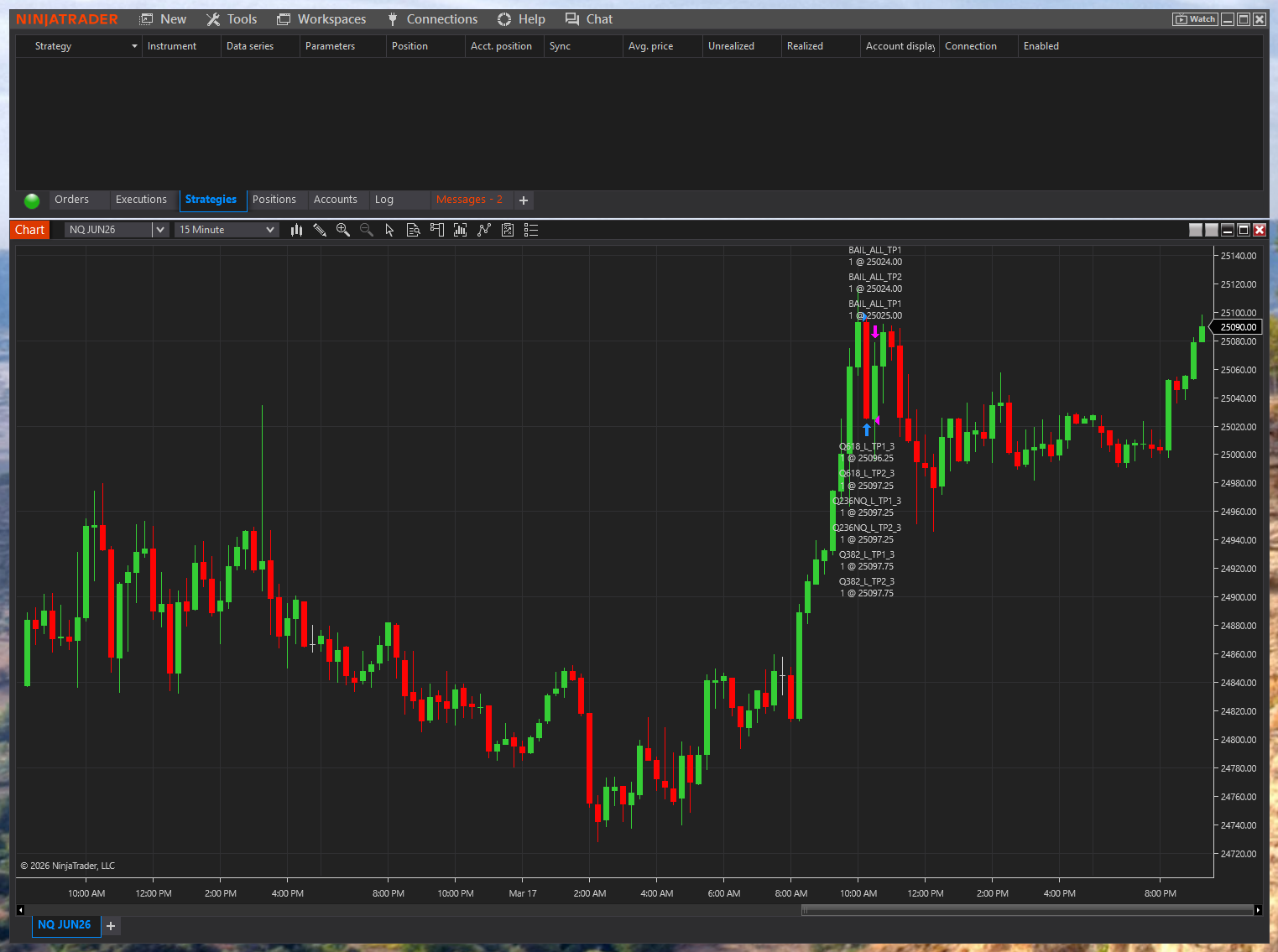
If NQ doesn't appear in the instrument search, your market data subscription may not be active yet. Go back to Step 2 and verify your CME data is turned on.
Now we'll add a chart for Micro E-mini NASDAQ (MNQ). This is the smaller contract your algorithms can route orders to. Instead of opening a separate window, we'll add it as a tab in the same chart window.
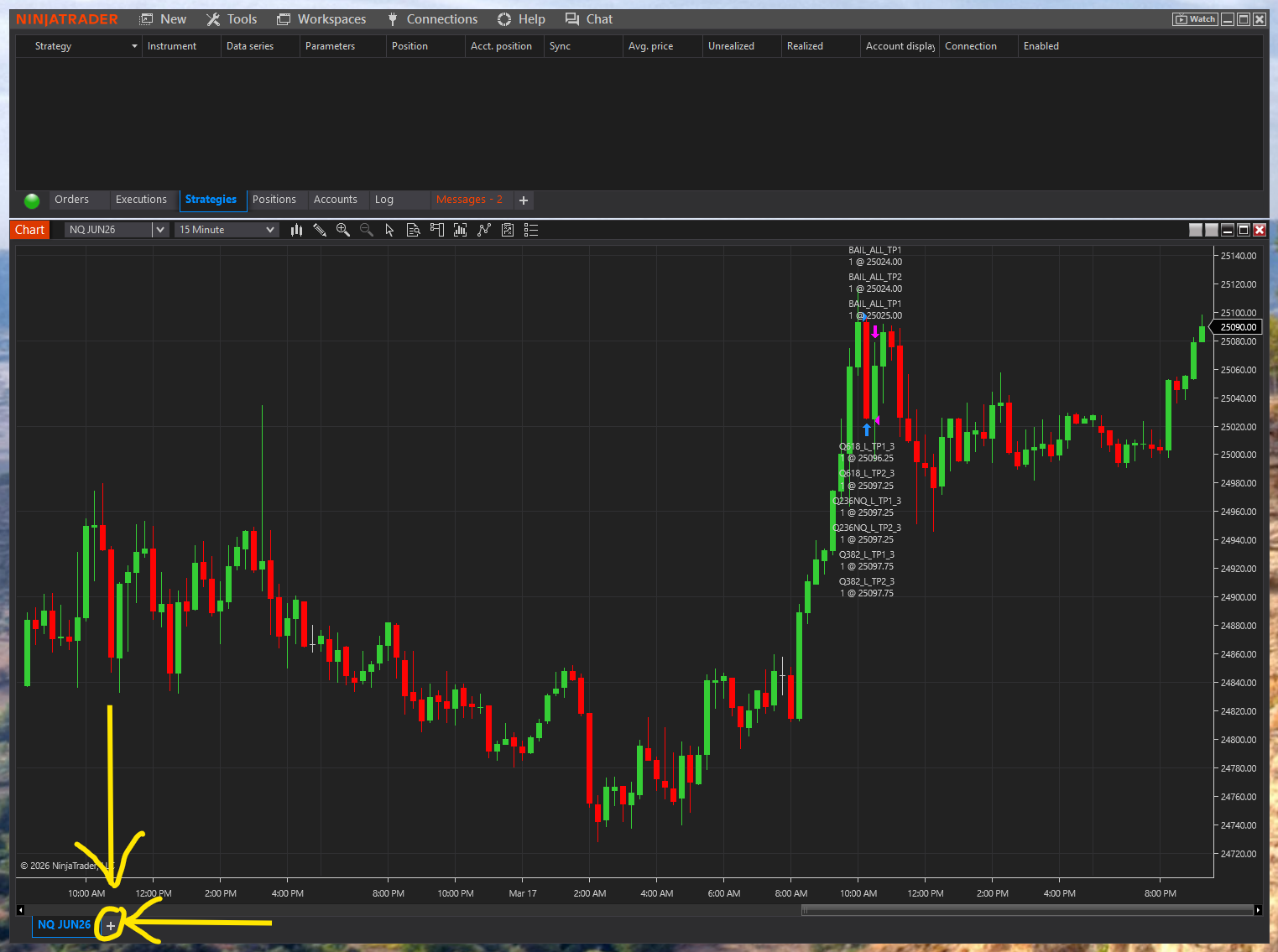
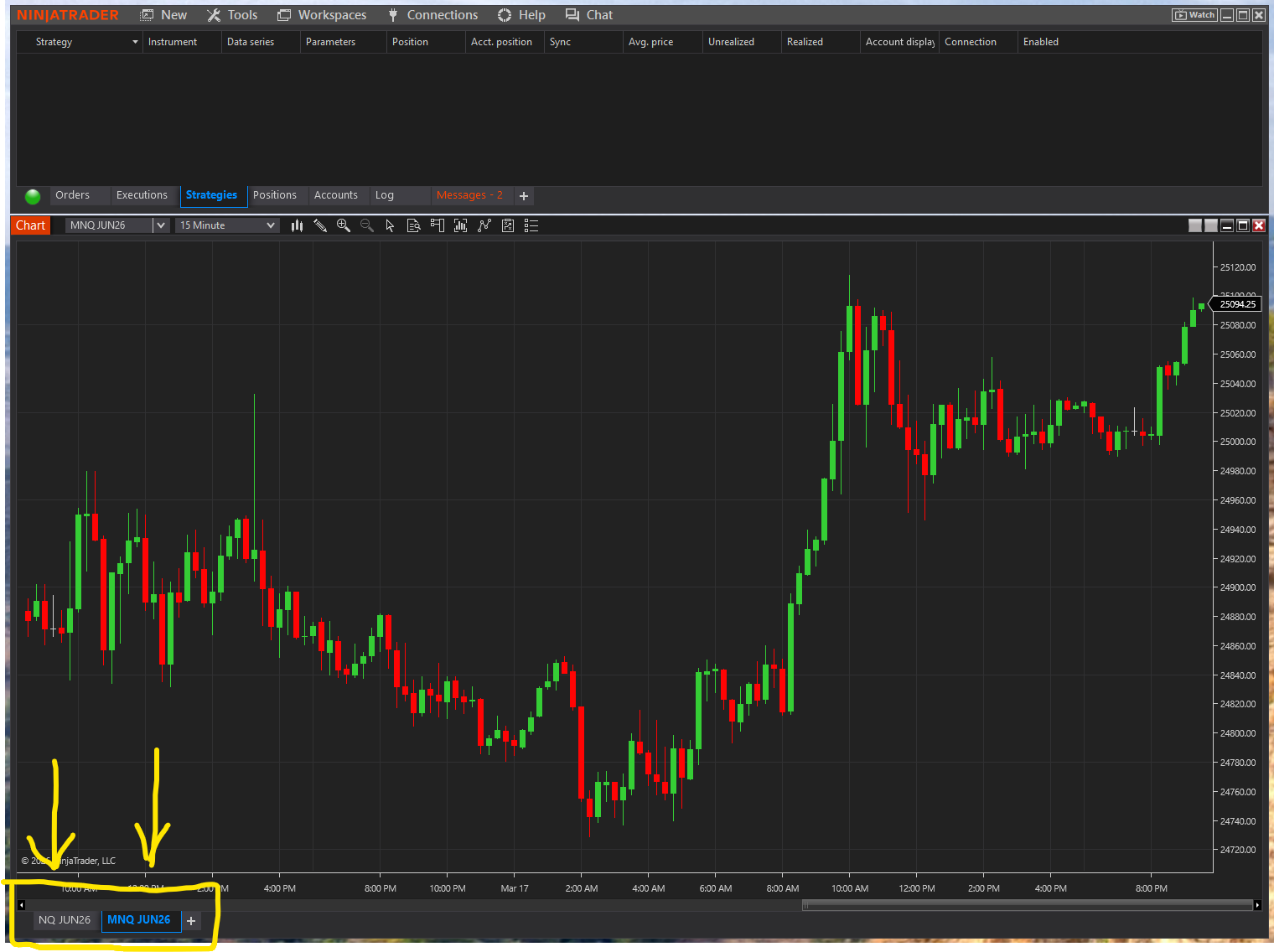
At the bottom of your NQ chart, click the + button to add a new tab:
The Data Series dialog opens again. This time set:
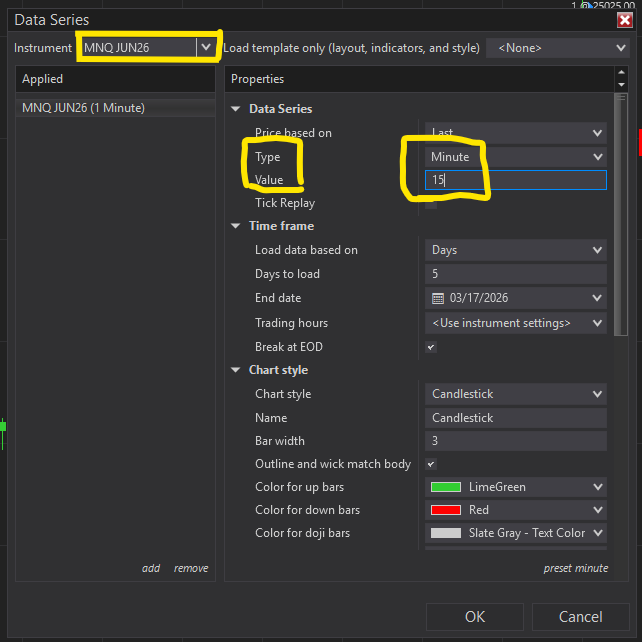
Click OK. You now have both NQ and MNQ as tabs at the bottom of your chart window:
Now that your charts are set up, save the workspace so this layout is preserved every time you open NinjaTrader.
Control Center running, settings configured, NQ chart, MNQ chart, workspace saved. You're set up and looking at live futures data.
Before moving on, confirm:
Share a screenshot with Oracle on Discord if you'd like verification before continuing.