
Get NinjaTrader downloaded, installed, and open for the first time. This takes about 5 minutes.
From your NinjaTrader dashboard, you should already have access to the download page. If not, go to NinjaTrader.com and navigate to the download page.
Click the big blue "Download" button to get the latest release.
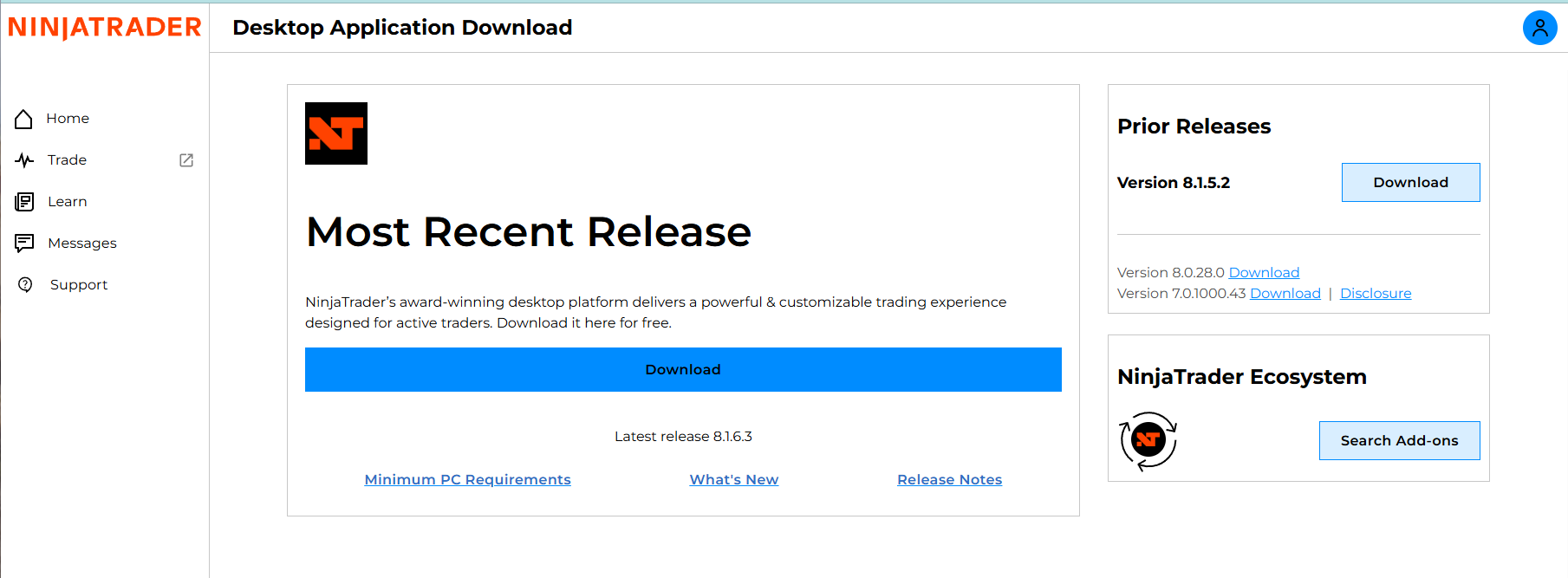
The installer file will be named something like NinjaTrader8Setup.exe.
Save it somewhere easy to find — your Desktop or Downloads folder works fine.
NinjaTrader's free license gives you full platform access with simulated trading. You don't need to buy anything to get started — just download, install, and sign in.
Double-click NinjaTrader8Setup.exe to start the installation.
If Windows asks "Do you want to allow this app to make changes to your device?" — click Yes.
The installer wizard will walk you through a few screens:
Leave the install path at the default (C:\Program Files\NinjaTrader 8).
Changing it can cause issues with data feeds and strategy loading later.
After installation completes, you'll find a NinjaTrader 8 shortcut on your desktop. Double-click it to launch.
On first launch, the platform takes a moment to initialize — you'll see a splash screen while it loads. This is normal.
If you're running on a VPS (from the previous step), install NinjaTrader inside your VPS — not on your local computer. Remote in first, then run the installer there.
NinjaTrader will prompt you to sign in. Enter the email and password you created in Step 2 (Sign Up for NinjaTrader).
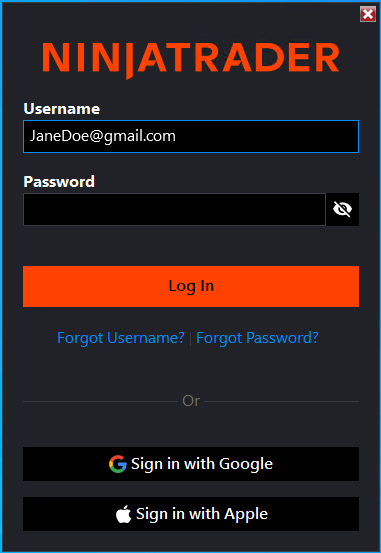
After signing in, the Control Center window appears. This is the main hub of NinjaTrader — everything runs from here.
Once you're signed in, the Control Center is open and NinjaTrader may load a default workspace with a chart or two. Don't worry about any of that yet — we'll set up your workspace properly in the next step.
You might also see a connection status in the bottom-left corner of the Control Center:
 Green — Connected and receiving data
 Yellow — Connected but waiting for data
 Orange — Connection issue
 Gray — Disconnected
If you see gray or no connection — that's fine for now. We'll set up your data connections in a later step.
You've got the platform open and signed in. Next, we'll walk you through the interface so you know where everything is before we start loading strategies.
Before moving on, confirm: