Understanding Connection Status Icons
The colored circle in the bottom-left of the Control Center tells you your connection state at a glance:

Green
Connected & receiving data

Yellow
Connecting / partial

Orange
Connection degraded

Red
Disconnected / error

Gray
Not connected
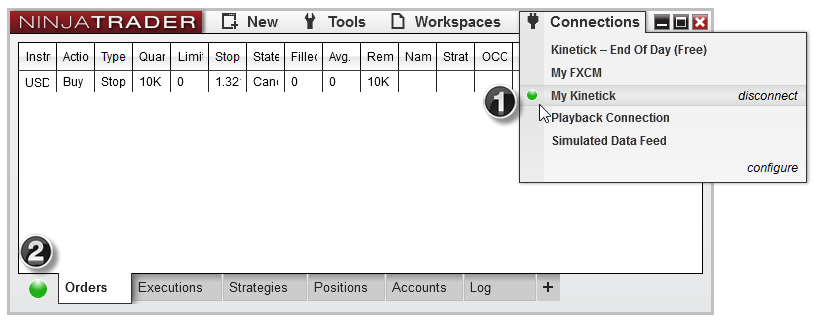
Control Center — connection status indicator in bottom-left corner
"Can't Connect" — Rithmic / Apex
The most common connection issue for Oracle subscribers. If your connection circle stays red or gray:
- Check credentials — Go to Connections → Configure. Verify your username, password, and server match exactly what your prop firm / Rithmic provided.
- Check the server — Apex uses
Rithmic Paper Trading for eval accounts and Rithmic 01 for funded. Make sure you're on the right one.
- Firewall / VPN — Rithmic requires specific ports. Disable VPN, check Windows Firewall isn't blocking NinjaTrader.
- Restart NinjaTrader — Sometimes a clean restart is all it takes.
- Check Rithmic status — Rithmic occasionally has outages. Check their status page or ask in Discord.
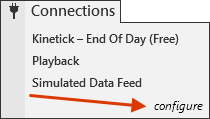
Connections → Configure — verify credentials and server selection
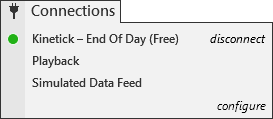
Connections menu — select your configured connection to connect
⚠️
Apex users: If you just got a new eval or funded account, it can take 15–30 minutes for Rithmic credentials to activate. Don't panic — wait, then try again.
Connection Drops Mid-Session
If your connection drops while a strategy is running:
- Check your internet — VPS users: verify your VPS hasn't gone to sleep or lost connectivity.
- Check the Log tab — The Control Center Log tab shows exactly when and why disconnections happened.
- Enable auto-reconnect — Under Tools → Options → Connection, ensure reconnect settings are enabled.
- Your algo is safe — Oracle strategies have built-in position management. On reconnect, the strategy will detect any open position and resume management.
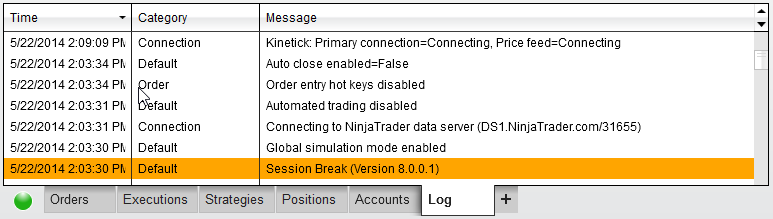
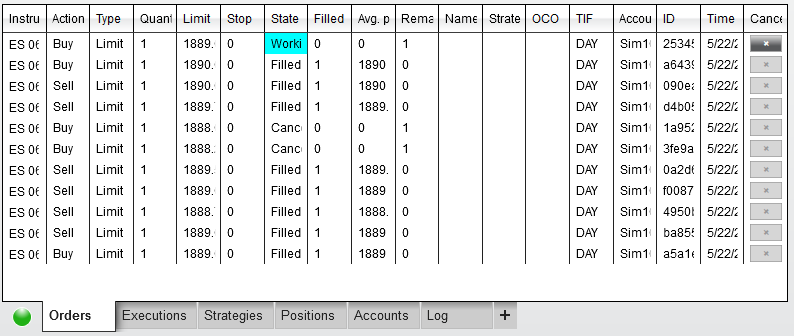
Log tab — shows connection events, errors, and strategy messages
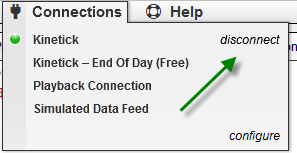
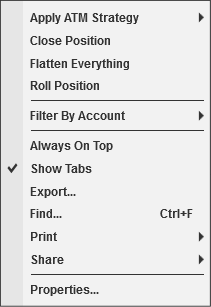
Right-click a connection to disconnect / reconnect
💡
VPS Tip: If you're on a VPS and connections drop overnight, check that your VPS power plan is set to "High Performance" and sleep is disabled.
Strategy Shows Error on Enable
When you enable a strategy from the chart and it immediately disables or shows an error:
- Check the Log tab — The specific error will be in Control Center → Log. Common errors:
License validation failed — Your license key doesn't match. Re-enter it in strategy parameters.Account not found — You're not connected, or the account name doesn't match.Instrument not found — Chart instrument doesn't match strategy requirements (needs NQ or MNQ).
- Reload NinjaScript — Sometimes a compile issue. Right-click in NinjaScript Editor → Reload NinjaScript.
- Check chart timeframe — Oracle strategies require specific bar types and intervals. Verify your chart matches the setup guide.
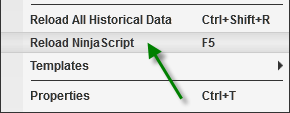
NinjaScript Editor — Reload NinjaScript to recompile all strategies
Strategy Enabled But Not Trading
Your strategy shows as enabled (green arrow) but no trades are happening:
- Check trading hours — Oracle strategies only trade during configured market hours. Outside those hours, the strategy waits.
- Check the Strategies tab — In Control Center → Strategies tab, verify your strategy shows "Enabled" with the correct account.
- Verify account selection — Make sure you selected the right account (not Sim101 when you want live, or vice versa).
- Check position limits — If your prop firm has max position limits and you're at the limit, new entries will be rejected.
- Market conditions — The algo waits for specific signal conditions. No trade = no signal yet. This is normal.
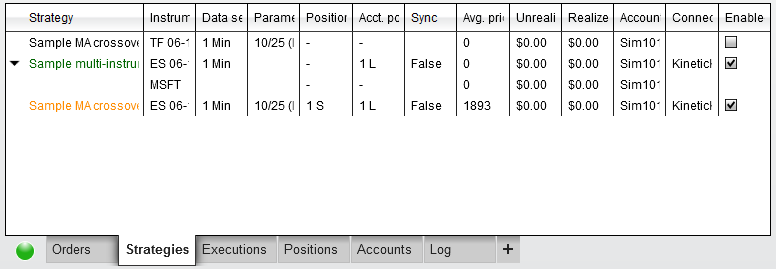
Strategies tab — verify strategy is enabled and on the correct account
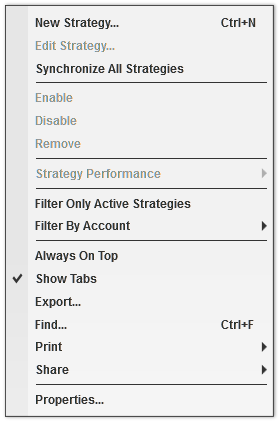
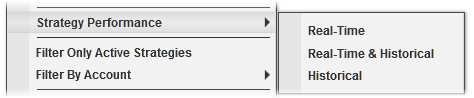
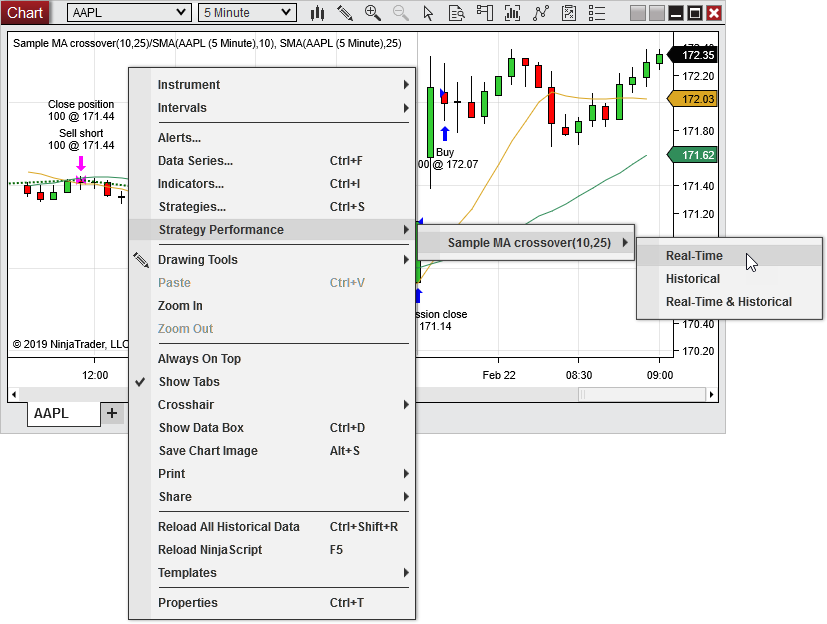
Right-click a strategy for options: disable, view performance, properties
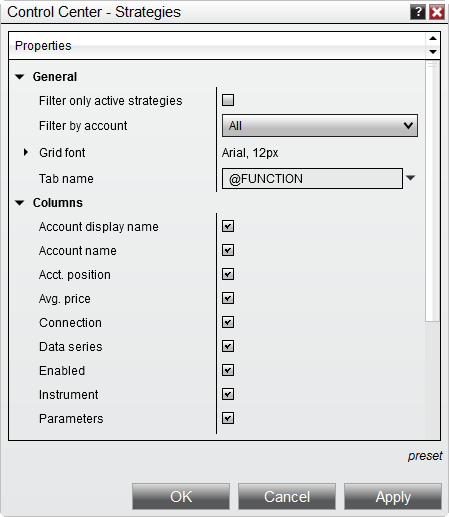
Strategy properties — verify account, instrument, and parameters
✅
Pro tip: If you're unsure whether the strategy is working, enable it on Sim101 first during market hours. You should see trades within the first session.
The #1 most dangerous mistake: accidentally trading live when you think you're in sim, or vice versa.
Global Simulation Mode
Global Simulation Mode forces ALL order entry to sim accounts only. When you're testing, always enable this:
Tools → Global Simulation Mode — a checkmark means it's active.
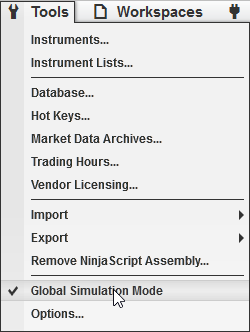
Tools → Global Simulation Mode — enable during testing
The Sim101 Account
Sim101 is NinjaTrader's built-in paper trading account. It behaves like a real account with cash balance and P&L, but no real money is at risk.
- Reset Sim101 — Right-click in the Accounts tab → reset to clear P&L and start fresh.
- Multiple sim accounts — You can create additional sim accounts (Sim102, etc.) for testing different strategies simultaneously.
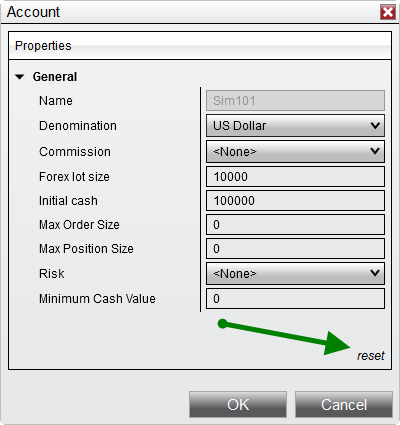
Reset Sim101 — right-click in Accounts tab to clear balances
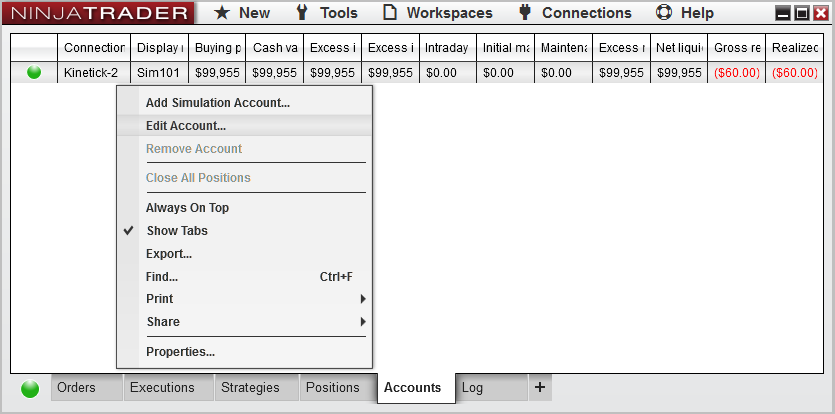
Sim101 context menu — reset, edit properties, create additional sim accounts
How to Verify Which Account You're On
Before enabling any strategy, always check:
- Account dropdown — In Chart Trader or the strategy enable dialog, the account dropdown shows your selected account.
- Accounts tab — Control Center → Accounts tab lists all connected accounts with their type.
- Background color — Under Tools → Options → Trading, set a "Simulation color" so sim windows have a different background (e.g., dark blue). This makes it instantly obvious.

Accounts tab — shows all connected accounts, balances, and type (sim vs live)
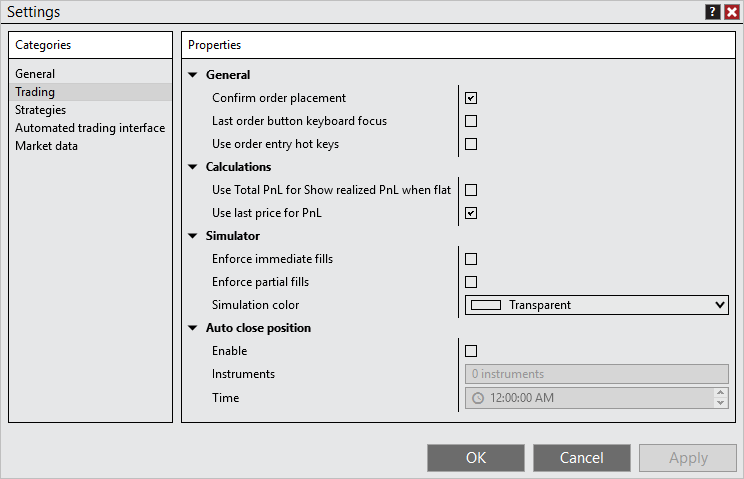
Options → Trading — set simulation background color for visual safety
🚨
CRITICAL: Never enable a strategy on a live/funded account until you've verified it works correctly on Sim101 first. When switching from sim to live, double-check the account selection in the strategy enable dialog.
Chart Shows No Data / Blank
You opened a chart but it's empty or shows "Waiting for data...":
- Check connection — Are you connected? Look at the status indicator.
- Check instrument — Make sure you typed the instrument correctly (NQ 06-26, not just "NQ").
- Check trading hours — If it's outside market hours and you don't have historical data, the chart may be blank.
- Reload historical data — Right-click the chart → Reload All Historical Data.
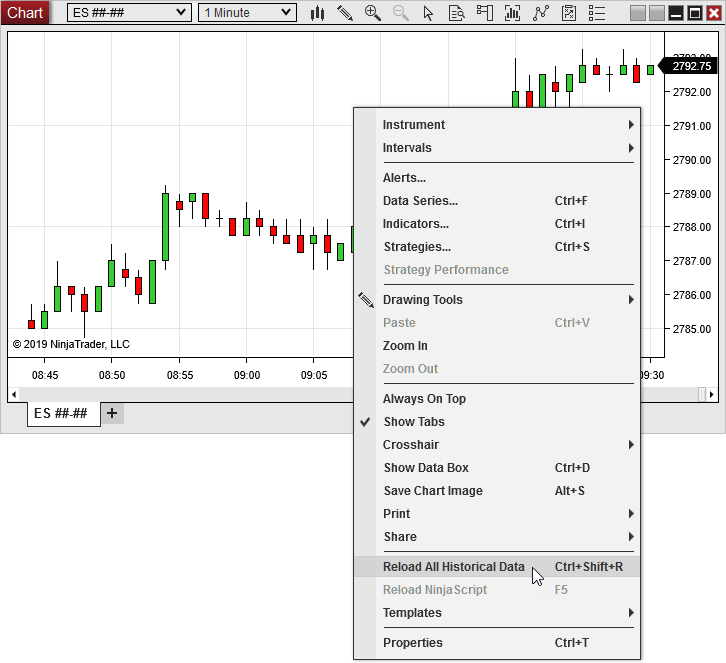
Right-click chart → Reload All Historical Data to fix data gaps
Data Gaps / Missing Bars
Your chart has gaps (missing candles) or jumps in time:
- Weekend/holiday gaps are normal — Futures don't trade on weekends. Gaps at Sunday open are expected.
- Reload historical data — Right-click chart → Reload All Historical Data.
- Check trading hours template — Under chart Data Series, verify the Trading Hours template matches your expected session (e.g., "CME US Index Futures ETH").
- Check data provider — Rithmic provides limited historical data for some contracts. If you need more, consider connecting to a supplemental data feed.
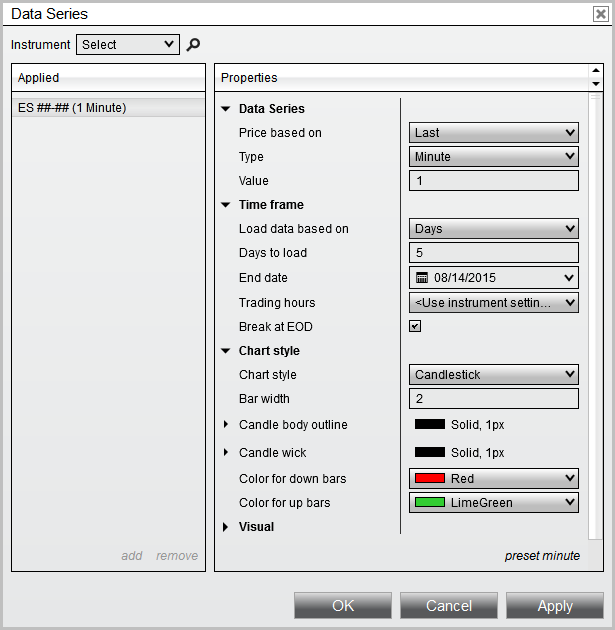
Data Series — verify instrument, bar type, interval, and trading hours
Contract Rollover (Quarterly)
NQ/MNQ futures contracts expire quarterly (March, June, September, December). When this happens:
- Update your chart instrument — Switch from the expiring contract (e.g., NQ 03-26) to the new front month (NQ 06-26).
- Re-enable your strategy — Disable the strategy, update the chart instrument, then re-enable.
- Oracle strategies handle this — Our CLIENT builds have NQ/MNQ routing built in. Just update the chart instrument.
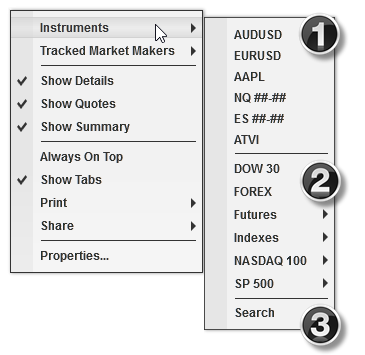
Instrument selector — type the new contract month to switch
💡
Rollover dates: NQ/MNQ rolls happen on the 2nd Friday of March, June, September, and December. Oracle will announce rollovers in Discord.
Save & Restore Your Workspace
Once you have everything configured and working, save your workspace so you can restore it if anything goes wrong:
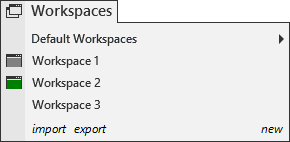
Workspaces menu — save, open, create new workspaces
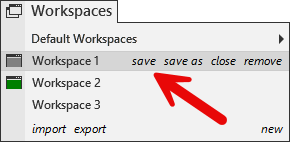
Save workspace — preserves all charts, strategies, and window positions
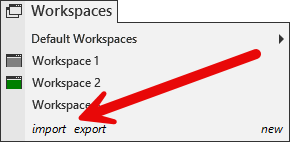
Import/Export — back up your workspace to a file for safekeeping
Key Settings to Check
Under Tools → Options, these settings matter most for algo trading:
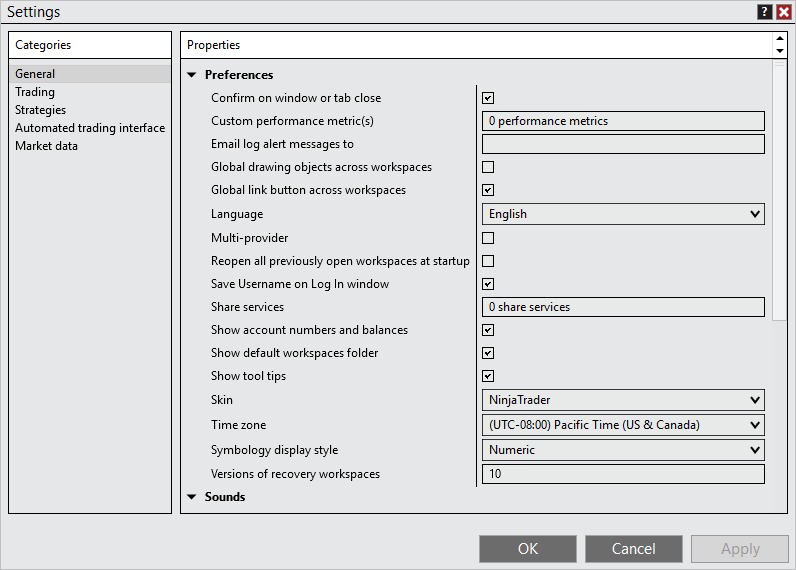
Options → General — startup behavior, workspace settings
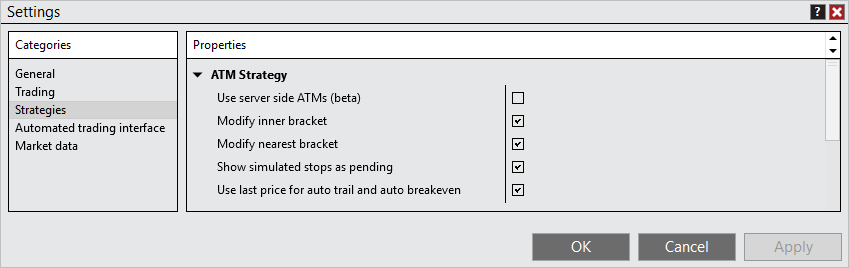
Options → Strategies — default behavior for strategy enablement
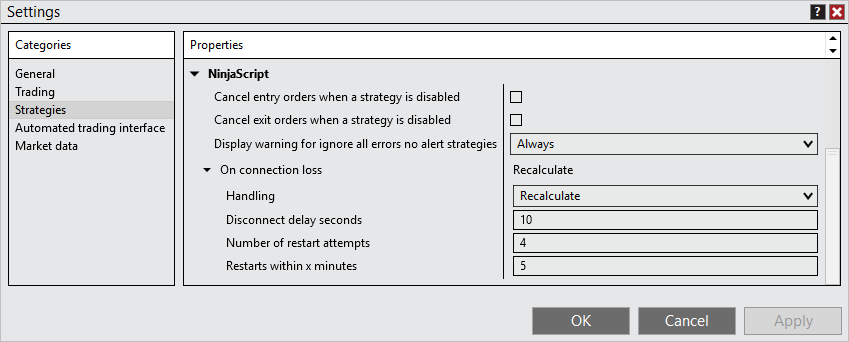
Options → Strategies (continued) — error handling, real-time settings
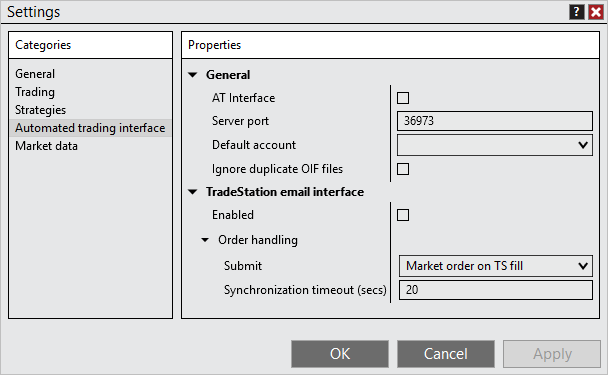
Options → Automated Trading Interface — for external automation
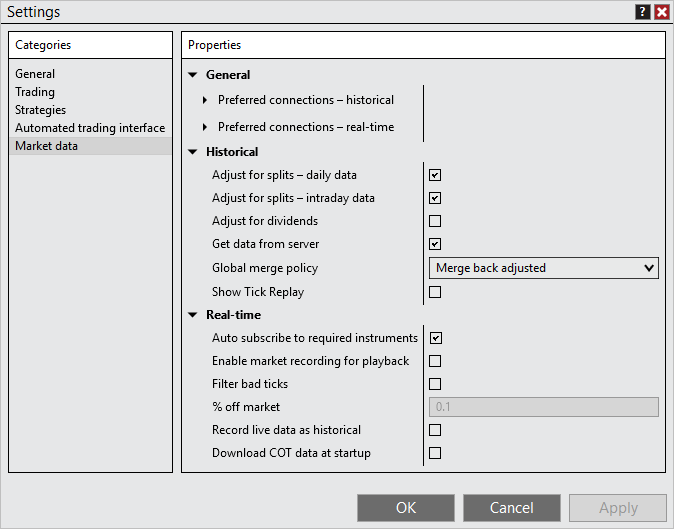
Options → Market Data — tick filtering, merge policy for multiple connections
The Strategy Analyzer lets you backtest strategies against historical data. While Oracle strategies are optimized for live trading, backtesting can help you understand expected behavior.
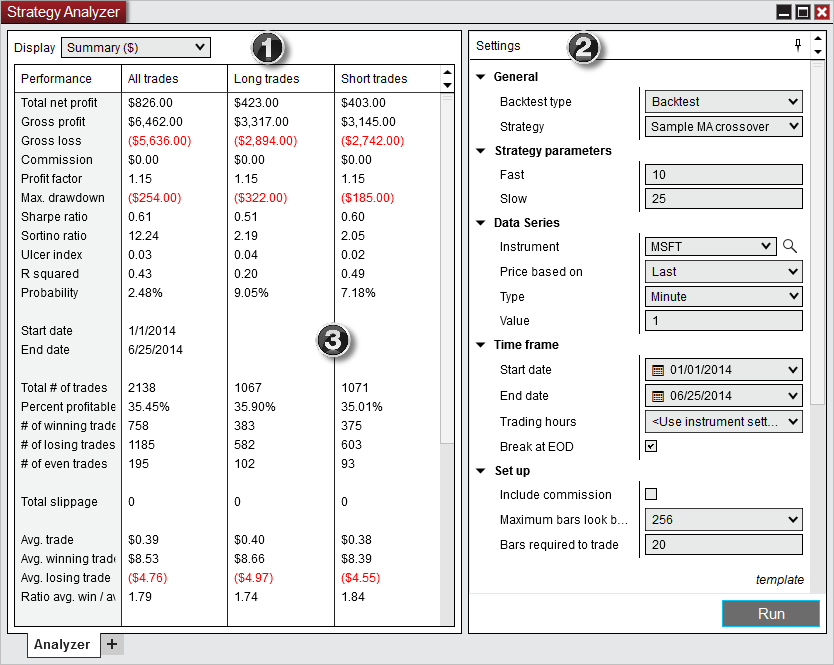
Strategy Analyzer — main layout with instrument, date range, and strategy selection
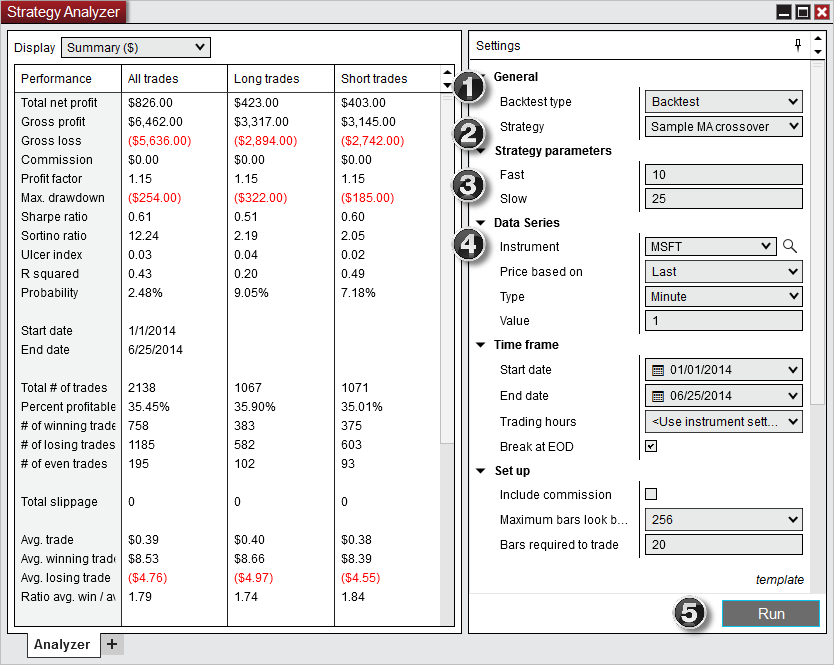
Configure and run a backtest — select strategy, dates, and parameters
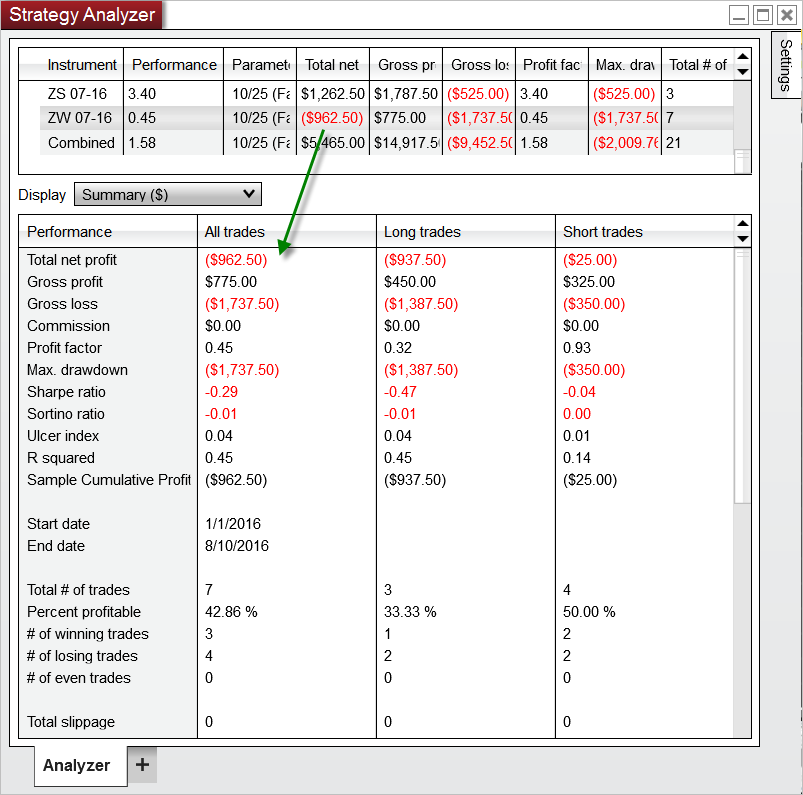
Backtest results — summary stats, trade list, equity curve
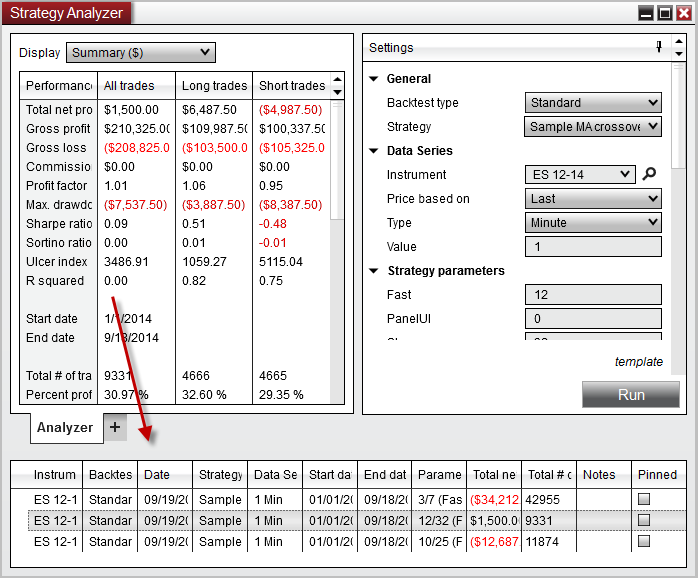
Show Log — view strategy output messages during backtest
💡
Backtest ≠ Live: Backtesting uses historical data with perfect fills. Live trading has slippage, latency, and real market conditions. Use backtests for understanding, not predicting exact results.
Quick reference for errors you might see in the Log tab:
"Strategy has been disabled. Reason: An order was submitted with an inactive instrument"
Fix: The contract has expired (quarterly rollover). Update your chart to the current front-month contract.
"Connection lost. Attempting to reconnect..."
Fix: Check internet/VPS. If it doesn't auto-reconnect within 60 seconds, manually reconnect via Connections menu.
"Order rejected: Insufficient margin"
Fix: Your account balance is below the margin requirement. Check with your prop firm. For Apex, ensure you haven't hit the trailing threshold.
"Strategy has been disabled. Reason: Account does not exist"
Fix: You're not connected, or the account was removed. Reconnect to your data provider, then re-enable the strategy.
"Error on calling 'OnBarUpdate' method: License validation failed"
Fix: Your Oracle license key is incorrect or expired. Check the LicenseKey parameter in your strategy properties. Contact Oracle support if your subscription is active.
"Error compiling NinjaScript"
Fix: A strategy file is corrupted. Re-import the .zip file from Oracle. If other scripts are causing conflicts, remove them and try again.
"Historical data request failed"
Fix: Rithmic limits historical data requests. Wait a few minutes and try again, or reload historical data from the chart right-click menu.
When something isn't working, run through this checklist before asking for help:
💬
Still stuck? Take a screenshot of your error/issue and post it in the Oracle Algorithms Discord #support channel. Include what you've already tried from this checklist.